
Meta Muse Subscription: Sign Up and Pay With a Card
We subscribed to Meta Muse Power with an RDVCC card on the first try: a $0 verification, then a $16.96 charge. Which card to use, what to load, the age check.
- What Muse is and what it costs
- Who can use it: region, age and account
- Before you start: checklist and costs
- On RDVCC: sign up, verify, top up, open a card
- Muse sign-up, age verification and paying for a subscription
- Which BIN to choose: test results and data, then fees
- What to do if verification or payment fails
- After you subscribe: renewals, usage, canceling, invoices
- FAQ
- Summary
- Related reading
Bottom line: our test subscription worked. On November 6, 2026, we (the RDVCC team) subscribed to Muse’s Power tier using an RDVCC card on the 5556US BIN and a US-region Meta account, and it went through on the first try. The card showed only two Muse-related (METAPAY) entries: a $0 verification when we added the card, and about 4 minutes later a $16.96 subscription charge (subtotal $16.00, tax $0.96). The merchant name on the card is METAPAY, not Muse. Our impression during the test: “The whole process was smooth and easy.”
Before you start, know two limits:
- Muse is only offered in the regions Meta has announced, and you must be 18 or older. As of November 18, 2026, the regions we found in Meta’s official press releases are the US, Canada, Singapore and Australia. This guide does not offer any way around region limits or age verification.
- We found no public statement from Meta on which payment methods Muse accepts, and nothing saying it does or doesn’t accept virtual or prepaid cards. Our conclusions come from our own test and real records on RDVCC cards. They don’t describe Meta’s rules, and we don’t guarantee it will work for everyone; Meta can change things at any time.
Rates in this guide come from our ledger for the last 30 days (October 19 to November 17, 2026, Singapore time, per user). Official information was checked on November 18, 2026.
Who this guide is for: people aged 18 or older in a region where Muse is available who want to use their own RDVCC card for Power or Maximum, or who were asked for a card while signing up for Muse. You can follow it even if you’ve never used a virtual card before.
- Pick a card: 5378US or 5556US. Their fees are identical (Transaction fee, Declined transaction fee, Reversal fee and Card verification fee are all $0). 5378US has the most data from our cards, and you can find it on the card opening page under “Pick by purpose → General US spending”; 5556US is the one we tested with. We don’t recommend 5378HK.
- Load money: put at least $30 on the card when you open it. That covers one month of Power (our test charge was $16.96). Section 3 shows the math.
- What you’ll see on the card: first a $0 METAPAY verification, then a METAPAY subscription charge.
- If it’s declined: check the card’s transactions first, fix the cause, then try once more. Don’t keep retrying.
1. What Muse is and what it costs
What Muse is
Muse is a personal AI agent from Meta that helps with everyday tasks such as email and your calendar. Its website is muse.ai, and the site states that it’s from Meta. PBS reported on September 8, 2026 that Muse had launched that day, starting in the US.
Where you can use it: the mobile app (iOS, Android) and the web at muse.ai. Meta’s press release of November 17 also mentions a Mac app, and the muse.ai home page says you can chat with it in WhatsApp too. In the App Store it’s listed as “Muse from Meta”, and the developer is Meta Platforms, Inc.
What tiers there are
Meta’s official press release says only that most needs are covered for free and that you can subscribe if you want to use it more. It doesn’t give prices. Public reports give these:
| Tier | Monthly price in public reports | Usage in public reports |
|---|---|---|
| Free | $0 | A usage limit that refreshes; the size isn’t published |
| Power | $20 | About 500 million Muse tokens per week |
| Maximum | $100 | About 3 billion Muse tokens per week |
These numbers come from public reports (for example, a Tech Insider article from September 9, 2026, which says it’s quoting Meta’s Help Center). That Help Center page loads through a script, and we couldn’t read the original. Muse’s terms state that Meta may offer free use or trials and may change them at any time.
What we were actually charged
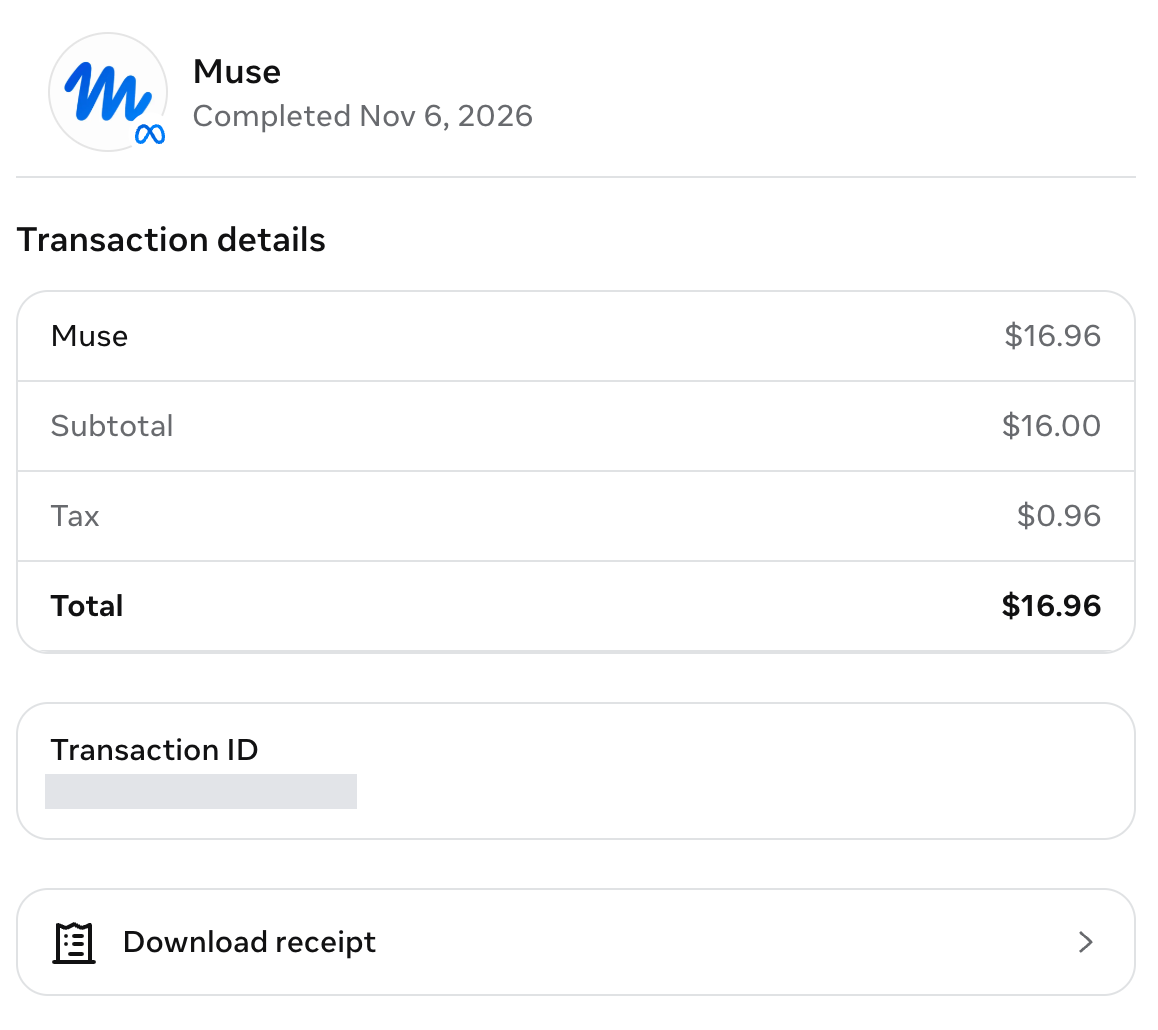
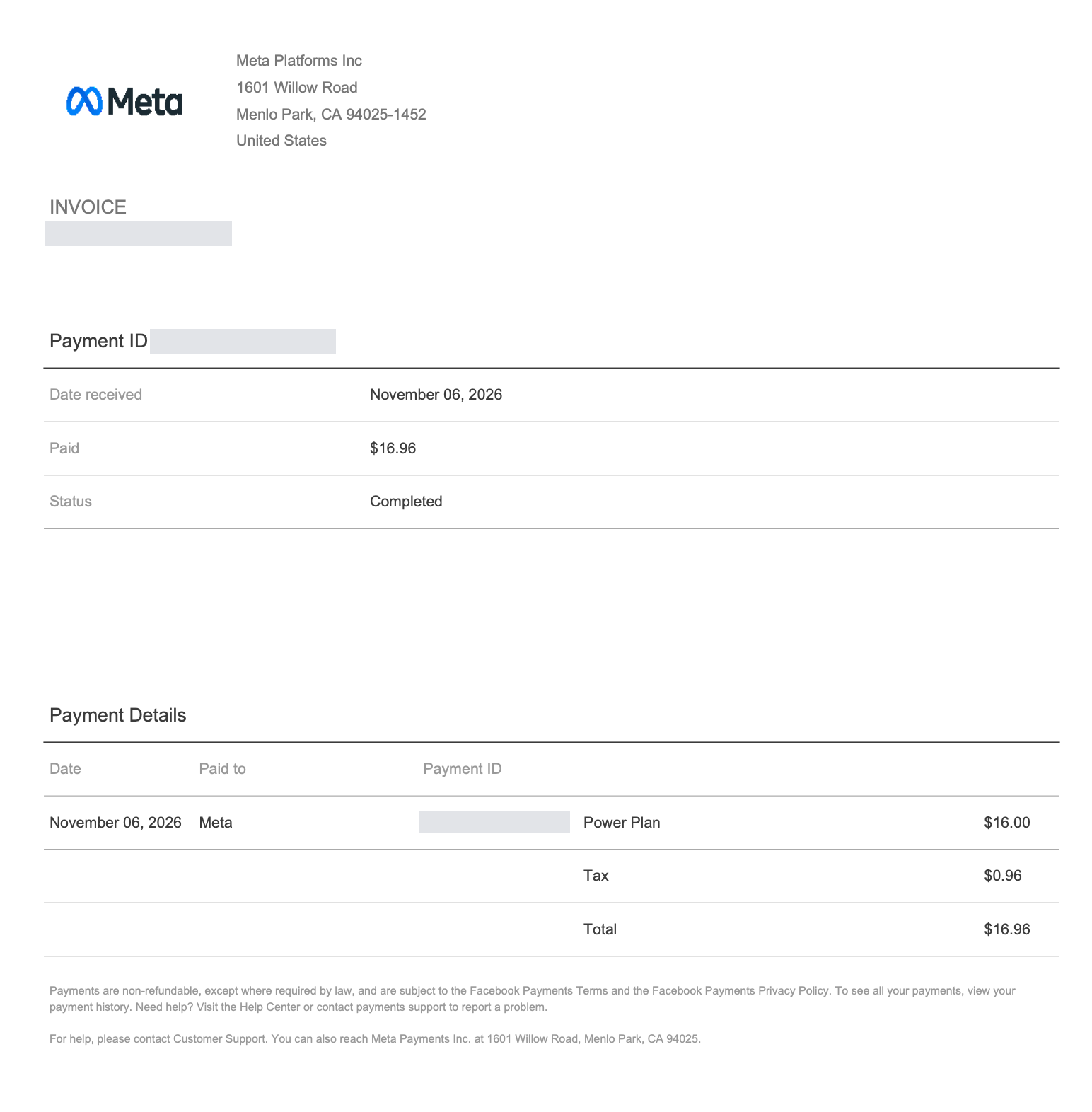
We subscribed to Power, and the invoice shows:
| Item | Amount |
|---|---|
| Power Plan | $16.00 |
| Tax | $0.96 |
| Total | $16.96 |
Two things to note:
- Our subtotal was $16.00, not the $20 that public reports give for Power. We don’t know why. When you subscribe, go by the amount shown at checkout.
- The total includes tax. Meta’s subscription terms state that taxes such as sales tax and VAT are paid by the user. Our tax was $0.96; yours may be different.
In our ledger, successful charges that match the Power amount are still rare. We haven’t tested Maximum, and we haven’t yet seen a matching charge for it in the ledger. We tested with a US-region account and were charged in US dollars. We have no tests from Singapore, Australia or Canada, so we can’t say what currency checkout uses there or how tax is calculated.
Where to check your weekly usage
Once you’ve subscribed, the General page in Muse settings has a Usage section. Our screenshot shows:
- Power plan: the tier you’re on
- 0% used (499M tokens left): 0% of the allowance used, with about 499 million tokens left (M stands for million)
- Weekly limit resets on Nov 21: the weekly allowance resets on November 21
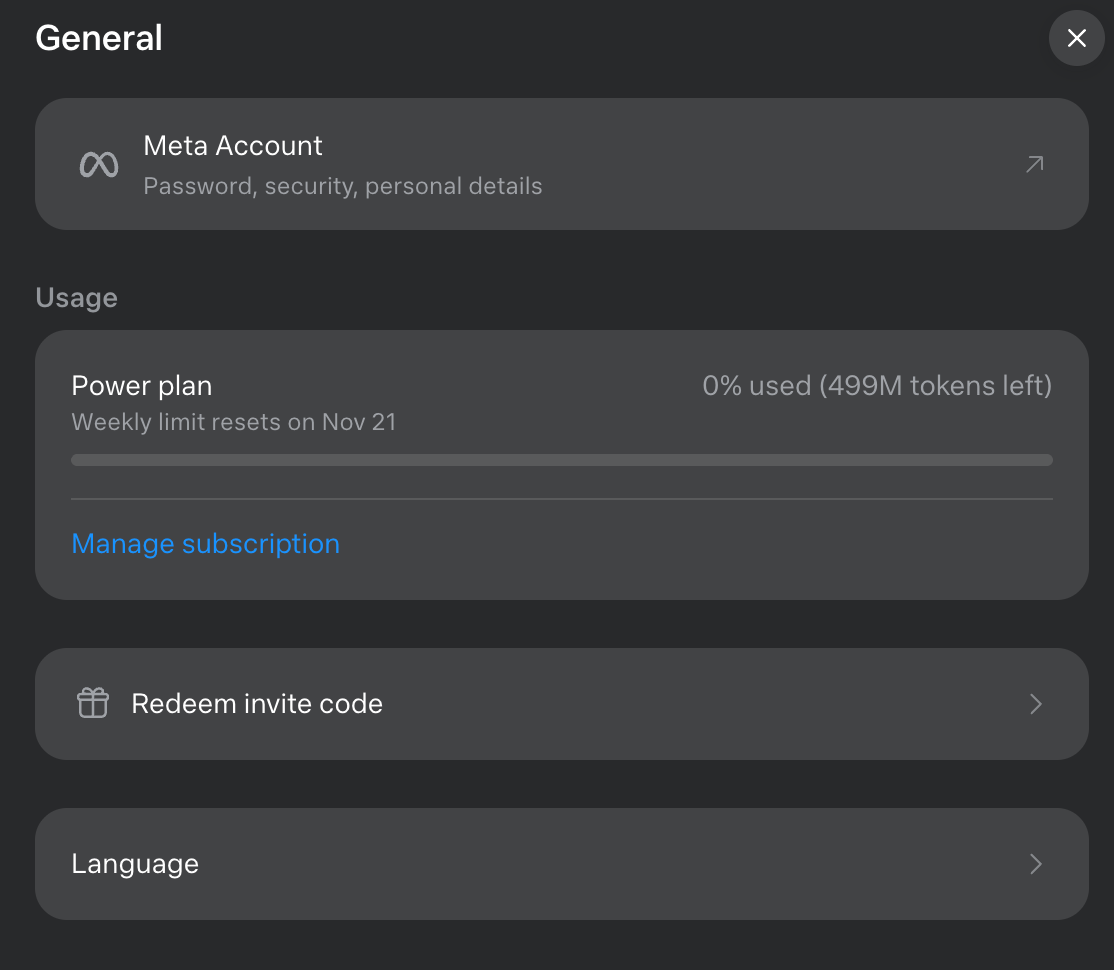
In other words, the allowance is counted per week and resets on a set day. In the screenshot, Power shows about 499 million tokens left at 0% used, which matches the roughly 500 million a week in the reports.
Muse’s terms say Meta may offer options to buy additional paid AI usage, and the App Store release notes also mention buying extra tokens. These credits aren’t legal tender and have no equivalent cash value.
Muse and Muse Code are different products
| Muse | Muse Code | |
|---|---|---|
| What it is | A personal AI agent for everyday users | A coding agent for developers that runs in the command line (terminal), part of the Meta Model API |
| Pricing | Free / Power / Maximum (public reports: $20, $100) | Official subscription page: Everyday Usage $5, High Usage $15, Power Usage $50, Maximum Usage $200 (monthly) |
| In this guide | Covered | Not covered; we have no reliable payment data |
The names are easy to mix up: Muse’s “Power” and Muse Code’s “Power Usage” are two different subscriptions.
2. Who can use it: region, age and account
Where it’s available
We couldn’t find a complete country list from Meta. Here is what Meta’s official press releases said as of November 18, 2026:
| Region | What Meta says | Source |
|---|---|---|
| US, Canada | A September 29, 2026 press release says Muse is available in the US and Canada | about.fb.com |
| Singapore | Available from October 27, 2026 | about.fb.com |
| Australia | Available from November 17, 2026 | about.fb.com |
We haven’t found an official source for any other country or region, so we don’t list them here. Muse’s terms also state that anyone legally barred from receiving Meta’s services can’t use Muse.
We tested with a US-region Meta account. This guide only covers paying from within an available region and does not offer any way around region limits.
Age
Muse’s terms (effective November 17, 2026) require you to be 18 or older, or older still if the age of majority where you live is higher. Meta estimates age using technology and may verify it with a credit card when needed (Muse’s terms); Fox News reported that this is only required when you can’t be confirmed as an adult in other ways (see section 5). If you’re under 18, you can’t use Muse, and you can’t use RDVCC either: RDVCC serves individuals aged 18 and over.
Account
You sign in or sign up at muse.ai with a phone number or email. In our screenshot, the top of the General page in Muse settings is “Meta Account” (password, security, profile), so you can get to your Meta account from Muse’s settings. Sign up with your own phone number or email and your own Meta account.
3. Before you start: checklist and costs
What you need
| What you need | Notes |
|---|---|
| You’re in an available region and 18 or older | See section 2 |
| Your own Muse account (linked to your own Meta account) | Sign up with a phone number or email |
| An RDVCC card | 5378US or 5556US; section 6 explains why |
| Enough money on the card | Load at least $30 when you open the card; see “How much to keep on the card” below |
| A USD balance in your RDVCC account | Top up with USDT; each transfer must arrive as at least 35 USDT, so add about 2 USDT when you withdraw from your exchange |
| An authenticator app on your phone | Turn on two-factor authentication (2FA) on RDVCC. Without it, you can’t see the card’s CVV or expiration date |
How much to keep on the card
- For Power: the card balance must be more than the total shown at checkout. Our test total was $16.96. The least you can load when opening a card is $30 (the card opening page’s minimum), which covers $16.96 with about $13 to spare.
- What the extra covers: your tax may differ from ours, and a METAPAY charge of about $1 may also show up on the card (see section 5). An extra dollar or two is enough, and the $30 opening minimum already covers it.
- For Maximum: we have no test or charge records, so we can’t give an exact figure. At the very least, the card balance must be more than the total shown at checkout.
- In Singapore, Australia or Canada: we have no tests from these regions. If checkout shows a local currency, convert it to US dollars at that day’s rate and keep a little extra. 5378US and 5556US charge no Currency conversion fee or Cross-border fee.
- Renewals: before each monthly charge date, top the card up to more than the next total.
Worked example: one month of Power on 5378US
At the standard prices for regular users, from topping up your account to the Muse charge (5556US works out exactly the same: the two BINs have identical fees, so every number below stays the same):
| Step | Spent at this step | Account balance (USD) | Card balance (USD) |
|---|---|---|---|
| Top up your RDVCC account so that 35 USDT arrives (add about 2 USDT when withdrawing from the exchange) | 0.5% deposit fee; $34.82 credited | 34.82 | — |
| Open a 5378US card with a $30 opening top-up | Card opening fee $1.00 + Card top-up service fee $0.60 ($30 × 2%); the $30 on the card isn’t spent | 3.22 | 30.00 |
| Add the card on Muse; a $0 verification appears | Card verification fee $0 | 3.22 | 30.00 |
| Power is charged | $16.96 | 3.22 | 13.04 |
- Total charge to open the card, $31.60: $30 on the card + Card opening fee $1.00 + Card top-up service fee $0.60. The button at the end of the card opening page shows this figure.
- What you actually spend this month: subscription $16.96 + Card opening fee $1.00 + Card top-up service fee $0.60 + deposit fee of about $0.18, about $18.74 in total. The $13.04 left on the card and the $3.22 left in your account are still your money.
- How the Card top-up service fee works: it’s tiered by how much you’ve loaded onto cards so far this month. Under $1,000 it’s 2%; once you reach $1,000, $5,000, $10,000 and $50,000, it drops to 1.5%, 1%, 0.8% and 0.5%. It’s charged separately from your account balance and doesn’t come out of the money on the card. The minimum card top-up is $2.
- Month two: the $13.04 on the card won’t cover $16.96, and the $3.22 in your account isn’t enough to top up the card either, so top up your account again first. For example, with another 35 USDT arriving, your account goes up to 38.04; top up the card with $5 (service fee $0.10), leaving 32.94 in the account and 18.04 on the card; after the $16.96 renewal, 1.08 is left on the card.
- These are the standard prices for regular users. “Fees for this card” on the card opening page shows your own prices, so go by that.
4. On RDVCC: sign up, verify, top up, open a card
Step 1: Create an account
Sign up with your email: you’ll get a 6-digit code by email, then set a password. The password must be 8 to 64 characters and include uppercase letters, lowercase letters and numbers. It takes about 30 seconds.
Step 2: Verify your identity (required before opening a card)
- Before you open a card, you go through a one-time identity check: photograph your own valid ID document, then do a face check. It takes about 3 minutes, and you only do it once.
- Use your own valid ID document (a government-issued ID card or passport). Take a clear photo with all four corners in the frame and no glare.
- Open it in your phone’s built-in browser or in Chrome. In-app browsers inside messaging and social apps can’t open the camera.
- In a small number of cases it goes to manual review, usually with a result within 1 business day, sent by email.
Step 3: Top up your account
- “Account top-up” in the menu → choose a network (TRC20, ERC20, BEP20, Solana, Arbitrum and Polygon are all supported), and the page shows your dedicated top-up address.
- Withdraw to this address from your exchange or wallet. The network must match the one you chose on the top-up page. Copy and paste the address, then check the first and last 4 characters.
- Each transfer must arrive as at least 35 USDT, every time; anything under 35 isn’t credited. Exchanges take their fee out of the amount you withdraw, so add about 2 USDT. A 0.5% deposit fee is taken when the funds arrive, usually within a few minutes.
Step 4: Open a card
- Go to the “Open a new card” page. For your first card, you’ll first enter an English cardholder name (uppercase, spelled in Latin letters exactly as on your passport).
- At the “Choose card” step:
- For 5378US: under “Pick by purpose”, click “General US spending”. The BIN on sale for this purpose is 5378US.
- For 5556US: click “All BINs”, find 5556US in the list and click “Select”. 5556US isn’t listed under the AI purposes, so you have to pick it from all BINs.
- At the “Configure” step: “Card name” is just a note for yourself. Enter $30 as the “Opening top-up amount” (the minimum is $30). “Fees for this card” at the bottom of the page lists every fee for this card; check that the Transaction fee, Declined transaction fee, Reversal fee and Card verification fee are all $0.
- At the “Issue” step: tick both boxes, “I have confirmed the limit and name of every card; the charge cannot be reversed after submission (automatic refund on failure)” and “I have read and agree to the User Agreement and the AML Policy”, then click “Open 1 card · charge $31.60” (at standard prices). The card is usually issued within a few seconds, and the page shows “Top-up complete — card is ready”.
Step 5: Turn on 2FA, then find three things on the card details page
- Turn on two-factor authentication (2FA) first: “Security settings” → “Login protection (2-step verification / 2FA)”, and link it to the authenticator app on your phone. Without 2FA, the card details page shows only the card number, not the CVV or expiration date.
- Card number: in “My cards”, click this card to open its card details page. The card number is shown there and can be copied directly.
- CVV and expiration date: click “Show card details”, confirm this BIN’s usage rules, then enter the 6-digit code from your authenticator app. They then appear and can be copied. Don’t copy them out by hand.
- Billing address: the “Billing address” section on the card details page holds the name and US address the system assigned to this card. If Muse asks for a name (Full name) and billing address when you pay, copy this set exactly. Note that the “Card note” is not the cardholder name.
- Transactions: Muse’s verification and charges both show up here.
To add money to the card later: card details page → “Top up card” → enter the amount → “Confirm top-up”. The card receives exactly what you enter; the service fee is charged separately from your account balance, and the minimum per top-up is $2.
5. Muse sign-up, age verification and paying for a subscription
Below, we only describe what you can see in our test screenshots and what we could read on Meta’s official pages. Meta may move or rename buttons, so go by the page.
5.1 Sign up or sign in to Muse
Open muse.ai, or the Muse app on your phone, and sign up or sign in with your own phone number or email.
5.2 Age verification: you may be asked for a credit card check
Muse requires you to be 18 or older. Meta estimates age using technology and may verify it with a credit card when needed (Muse’s terms). Fox News (October 23, 2026) reported that this is only required when you can’t be confirmed as an adult in other ways, and that Meta says the step is free and the card details aren’t stored.
- This step confirms that you yourself are an adult. RDVCC only issues cards to users aged 18 and over who have completed identity verification as themselves, and a card is for your own use only: use your own card only on your own Muse account, don’t verify for anyone else, and don’t lend your card or account to anyone.
- An RDVCC card is a prepaid virtual credit card: you can only spend what you load, and it doesn’t let you borrow. Whether Meta accepts it for age verification is up to Meta, and we don’t guarantee it.
- If this step leaves a record on your card, check the result in the transactions (see 5.5). If the card side approved it but Muse still didn’t let you through, contact Meta support.
If you’re under 18, you can’t use Muse, and you can’t use RDVCC either. This guide does not offer any way around age verification.
5.3 Subscribe to Power or Maximum and pay
- In Muse, go to subscriptions, choose Power or Maximum, and follow the prompts to add this card and pay.
- Going by the merchant name on the card and Meta’s transaction details, our payment was charged to the card directly by Meta and paid through Meta Pay, and the card showed METAPAY.
- Meta’s subscription terms state that subscriptions bought through Apple or Google in-app purchase are billed and canceled under Apple’s or Google’s rules. That case isn’t covered by our test or our data.
- The total on the checkout page is what will be taken from the card. Make sure the card balance is higher than that before you submit.
- After submitting, wait for the result, and don’t click again.
5.4 How to check the subscription worked
You can check in three places:
- Muse settings → General → Usage: shows Power plan, how much you’ve used, how many tokens are left and the day the weekly allowance resets, with “Manage subscription” below.
- The transaction details in Meta Pay: our screenshot shows Muse, Completed Nov 6, 2026; Subtotal $16.00, Tax $0.96, Total $16.96; and “Download receipt” at the bottom.
- The RDVCC card’s transactions: a METAPAY subscription charge. This is the most reliable evidence: whether money was actually taken shows up on the card.
5.5 What you’ll see on the card
The two Muse-related entries on our card:
| Order | Merchant name on the card | Amount | Status in the transactions | What it is |
|---|---|---|---|---|
| 1st | METAPAY* followed by a code | $0.00 | Authorized | The check when adding the card: it only confirms the card works, and nothing is charged |
| 2nd (about 4 minutes later) | METAPAY | $16.96 | Now shows Settled | Power subscription fee |
The two entries have different merchant category codes: 5945 for the $0 verification and 5818 for the subscription charge. A merchant category code (MCC) is a 4-digit number the card networks assign to each type of merchant, and the issuer can use it to decide whether to approve a transaction.
Our data for the last 30 days (users with a METAPAY record on their card):
- $0 verification: about 90% of users had a $0 verification on their card. For everyone who went through a $0 verification, the card side approved it (each had at least one $0 verification approved by the issuer); whether Muse ultimately let them through, we can’t see. About 5% were declined along the way, all for wrong card details (CVC or expiration date), and were approved once they fixed them; a few were approved after switching to another card.
- A charge of about $1: in the last 30 days, about 4 in 10 users had a settled METAPAY charge of about $1 on their card (merchant category 5945). It was fairly common before November 4 (about 63% from October 19 to November 3) and much rarer after November 4 (about 7% from November 4 to 17). So far we haven’t seen a refund of it on the same card, and we’ve found no explanation from Meta; we don’t know whether it has anything to do with sign-up or age verification. Our test card didn’t have this charge. The $30 minimum opening load already covers it.
- A pre-authorization of about $1: about 7% of users had a pre-authorization of about $1 (merchant category 7999) that was later reversed, with the money going back onto the card; for some, it was still pending, not reversed, when we counted.
How we counted: we counted card records whose merchant name starts with METAPAY and that aren’t advertising, and left out two accounts with unusually high transaction volume. Meta’s other non-advertising purchases also use the METAPAY name, and this set includes things that clearly don’t look like a subscription, such as merchant categories 5732 and 7994, so we can’t guarantee every record is Muse; the rates are the safer thing to look at. We only see requests that reach the card. Anything Meta declines on its own side isn’t in these rates.
6. Which BIN to choose: test results and data, then fees
A “BIN” (short for BIN range) is the group of cards that share the same first few digits of the card number. BINs differ in issuer, fees and which merchants they can pay.
Table 1: our test and our data (last 30 days, users with a METAPAY record, per user; no rate shown for fewer than 5 users; very small samples are marked)
| BIN | Our test | Of users with a $0 verification, share approved on the card side | Users declined at least once | Verdict |
|---|---|---|---|---|
| 5378US | — | About 98% | About 10% | Recommended: the most data, and the easiest to find on the card opening page |
| 5556US | Subscribed to Power on November 6 | Fewer than 5 users; no rate shown | Not shown | Recommended: the one we tested with |
| 4413USa | — | 100% (very small sample) | 0% (very small sample) | Works, but every transaction costs a fee |
| 4746US | — | 100% (very small sample) | 0% (very small sample) | Works; not a first choice |
| 5378HK | — | No $0 verification seen (very small sample; no rate shown) | Not shown | Not recommended |
| 5262SG | — | Fewer than 5 users; no rate shown | Not shown | Not recommended |
Table 2: standard fees on the card opening page (regular users; some users have their own prices, so go by “Fees for this card” on the card opening page)
| BIN | Card opening fee | Transaction fee (per transaction) | Declined transaction fee | Reversal fee | Card verification fee |
|---|---|---|---|---|---|
| 5378US | $1.00 | $0 | $0 | $0 | $0 |
| 5556US | $1.00 | $0 | $0 | $0 | $0 |
| 4413USa | $1.50 | $0.50 | $0.50 | $1.00 | $0.30 |
| 4746US | $2.00 | $0.50 | $0.60 | $0 | $0 |
| 5378HK | $1.00 | $0.60 | $0.60 | $0 | $0 |
| 5262SG | $2.00 | $0.60 | $0.50 | $1.00 | $0.20 |
Every BIN also charges the Card top-up service fee (2% down to 0.5% by monthly volume, with the same rules for all). The Reversal fee is charged when an authorization is later reversed.
How to choose:
- Pick 5378US or 5556US; their fees are identical: Transaction fee, Declined transaction fee, Reversal fee and Card verification fee are all $0, and the Card opening fee is $1 for both.
- 5378US: the most data from our cards. About 98% of users with a $0 verification were approved on the card side, and most declines were wrong card details or not enough balance. Our ledger also shows successful charges on 5378US for the same amount as our Power subtotal ($16.00, merchant category 5818). You can pick it on the card opening page under “Pick by purpose → General US spending”, which makes it the easiest for beginners to find.
- 5556US: the BIN we tested with on November 6. Its only METAPAY records were the $0 verification and the subscription charge. Few users in our ledger have paid METAPAY with it so far, so we show no rate, and that doesn’t mean everyone who uses it succeeds. You have to pick it from “All BINs”.
- 4413USa works, but every transaction costs a fee. No one in our data was declined, but the sample is very small. At the current list prices on the card opening page, the Card opening fee is $1.50, with $0.50 per transaction, $0.50 per declined transaction, $1.00 per reversal and a $0.30 Card verification fee for each $0 verification; in our ledger over the last 30 days, METAPAY $0 verifications on this BIN were charged only that one fee.
- 4746US works, but isn’t a first choice. No one in our data was declined, but the sample is very small. It charges $0.50 per transaction and $0.60 per declined transaction, with a $2 Card opening fee.
- We don’t recommend 5378HK. In the last 30 days we saw no successful METAPAY charges on it (very small sample). The card only showed pre-authorizations of about $1, most of them later reversed, and no $0 verification. It also charges $0.60 per transaction and $0.60 per declined transaction.
- 5262SG: not recommended. Fewer than 5 users. Card opening fee $2, with $0.60 per transaction, $0.50 per declined transaction, $1.00 per reversal and $0.20 per card verification. At the current list prices on the card opening page, 5262SG charges a $0.20 Card verification fee for each $0 verification; in our ledger over the last 30 days, METAPAY $0 verifications on this BIN were also charged only that one fee.
About merchant categories: in the last 30 days, we saw no merchant-category blocks on Muse’s $0 verification (5945) or subscription charge (5818). For which BINs you can open, go by the card opening page.
7. What to do if verification or payment fails
Check the card’s transactions first: three cases
| In the transactions | What it means | What to do |
|---|---|---|
| The entry is there, with the status “Declined” | The card side declined it, and the record shows why | Fix it using the next table, then try once more |
| The entry is there, with the status “Authorized” or “Settled” | The card side has already approved it | If Muse still says it failed (for example, age verification didn’t pass), the problem is on Meta’s side; contact Meta support |
| The entry isn’t there | The request never reached the card; the cause is on Meta’s side, and we can’t see it | Check the card balance, card details, your region and your account status first, then contact Meta support |
Our data: what declined users ran into
In the last 30 days, about 9% of users were declined at least once on METAPAY. Very few users were declined, so the rates below come from a very small sample and are for reference only (one user can run into more than one reason):
| Reason | Share of declined users | Message in the transactions | What to do |
|---|---|---|---|
| Not enough balance or limit on the card | About 50% | Not enough balance on the card for this payment. Top up the card and try again. | Top up the card to more than the checkout total, then try once more |
| Wrong card details | About 50% | The CVC security code did not match / The expiry date is wrong | Paste the card number, expiration date and CVV again using the copy buttons |
In the last 30 days, we saw no merchant-category blocks on Muse’s $0 verification (5945) or subscription charge (5818).
Don’t keep retrying
- Retrying without changing anything gets the same result. After 2 declines in a row, stop and find the cause.
- If the same card is declined 10 times in a row, it will be closed under the issuer’s risk control rules, and the card balance goes back to your account balance.
- Some BINs charge $0.50 or $0.60 for each decline; 5378US and 5556US don’t.
Two common situations
- “The card shows the age verification as authorized, but Muse still didn’t let me through.” The card side has already approved it. Whether you pass is Meta’s call, and we can’t see that. Don’t keep trying with someone else’s card; contact Meta support.
- “I get Request Not Completed when I click subscribe.” We haven’t found an official explanation of this message from Meta, so we won’t guess at the cause. Check in the order above: whether the entry is in the transactions, whether the balance is enough, and whether the card details were copied and pasted. If the entry isn’t in the transactions, the request never reached the card; the cause is on Meta’s side, and we can’t see it. After checking the balance, card details, your region and your account status, contact Meta support.
8. After you subscribe: renewals, usage, canceling, invoices
- Renewals: Meta’s subscription terms state that subscriptions renew automatically each month and are charged on the same day of the month you subscribed (or on the last day of the month if that day doesn’t exist). If a payment fails, Meta may downgrade you or suspend your benefits until it’s paid. Price increases are announced at least 30 days in advance. Before each charge date, top the card up to more than the total (section 3 shows the math).
- The easy way: the card details page has “Auto top-up”; choose “Monthly top-up”. On a set day each month (Singapore time), it tops the card balance up to the amount you set, which is handy for having money ready before the billing date. The fee is the same as for a manual top-up.
- Checking usage: Muse settings → General → Usage.
- Managing or canceling: “Manage subscription” is below Usage. Meta’s subscription terms state that you can cancel under subscription management in Meta’s Accounts Center; you must cancel before midnight local time on the last day of the current period to avoid the next charge; after you cancel, your benefits last until the end of the current period; and there’s no refund if you cancel yourself. If you bought through Apple or Google in-app purchase, cancel under their rules.
- Invoices: click “Download receipt” in the Meta Pay transaction details to download one. Our test invoice was issued by Meta Platforms Inc (Menlo Park, California, US) and lists Power Plan, tax and the total, with the status Completed. Statements in your RDVCC account are for reconciliation only and aren’t invoices.
- Refunds: the footer of our test invoice says payments are non-refundable except where required by law. Meta’s subscription terms say the same.
- When you’re done with it, the money left on the card: cancel the subscription in Muse first, then deal with the card; otherwise the renewal will be declined when it comes due. “Withdraw to Balance” on the card details page is free and available 30 minutes after the card’s last transaction, and $1 stays on the card (returned along with the balance when you close the card). You can request a “Prepayment Refund” of your account balance, at $2 per refund.
9. FAQ
Do I need to add a credit card to sign up for Muse? What’s the age verification about?
You sign up for Muse with a phone number or email. Muse’s terms state that you must be 18 or older (or older if the local age of majority is higher); Meta estimates age using technology and may verify it with a credit card when needed; and users judged to be under 18 have their access restricted or disabled. Fox News reported that the card check is only required when you can’t be confirmed as an adult in other ways, and that Meta says the step is free and the card details aren’t stored. This step confirms that you yourself are an adult, so use only your own card on your own account. An RDVCC card is a prepaid virtual credit card; whether Meta accepts it for age verification is up to Meta, and we don’t guarantee it.
Which card works for Muse?
Pick 5378US or 5556US; their fees are identical (Transaction fee, Declined transaction fee, Reversal fee and Card verification fee are all $0). 5378US has the most data from our cards: about 98% of users with a $0 verification were approved on the card side, and you can pick it on the card opening page under “Pick by purpose → General US spending”. 5556US is the BIN we used for our Power test on November 6. We don’t recommend 5378HK: no successful charges in the last 30 days (very small sample), and $0.60 each per transaction and per declined transaction. We found no public statement from Meta on which cards it accepts; all of the above comes from our test and data and isn’t a guarantee.
Does the card verification cost anything?
When we subscribed in our test, a $0 verification appeared on the card and nothing was charged; we’re not sure whether it was the age verification. Some BINs charge a separate Card verification fee for it. At the current list prices on the card opening page, 4413USa charges $0.30 for each $0 verification and 5262SG charges $0.20; in our ledger over the last 30 days, METAPAY $0 verifications on these two BINs were charged only that one fee. On 5378US and 5556US, the Card verification fee is $0.
There’s an extra METAPAY charge of about $1 on my card. What is it?
We don’t know. In the last 30 days, about 4 in 10 users had a settled METAPAY charge of about $1 on their card (merchant category 5945). It was fairly common before November 4 and much rarer after November 4. We haven’t seen it refunded and found no explanation from Meta; we don’t know whether it has anything to do with sign-up or age verification. An extra dollar or two on the card is enough, and the $30 opening minimum already covers it.
Isn’t Power $20? Why was I charged $16.96?
Our test invoice: Power Plan $16.00, plus $0.96 tax, $16.96 in total. Public reports put Power at $20 a month, which differs from our subtotal. We don’t know why, so go by your checkout page. The total is higher than the subtotal because tax was added: Meta’s subscription terms state that tax is paid by the user, and your tax may be different.
Why does my card show METAPAY instead of Muse?
Our payment went through Meta Pay, so the card showed METAPAY: the $0 verification appeared as METAPAY* followed by a code, and the subscription charge as METAPAY. Among the METAPAY records on our cards, some have amounts and merchant categories that don’t look like Muse, so not every METAPAY entry is Muse. To confirm, check the transaction details in Meta Pay; in our test, they said Muse.
How do I fill in the billing address when paying?
If the payment page asks for a name and billing address, copy the set the system assigned to this card under “Billing address” on the RDVCC card details page, field by field. For the name, use the “Full name” in the billing address, not the card note. Don’t look up an address of your own.
How do I get an invoice? Can I get a refund after subscribing?
Click “Download receipt” in the transaction details in Meta Pay. Our test invoice was issued by Meta Platforms Inc and lists Power Plan, tax and the total; statements in your RDVCC account aren’t invoices. Refunds: the footer of our test invoice says payments are non-refundable except where required by law, and Meta’s subscription terms also state that there’s no refund if you cancel yourself, and that your benefits last until the end of the current period. If you don’t want to renew, cancel before the charge date.
Can I pay for Muse Code with the same card?
Muse Code is the Meta Model API’s command-line coding agent, with its own four monthly tiers ($5, $15, $50, $200), separate from Muse’s Power and Maximum. We can’t tell which charges in our ledger are for Muse Code, so we have no data and make no recommendation. Also, the Meta Model API’s geographic use policy (updated November 9, 2026) lists regions that may not access it, including the People’s Republic of China (including Hong Kong and Macau).
The card shows the authorization went through, but Muse says it failed or shows Request Not Completed. Why?
“Authorized” or “Settled” on the card means the card side has approved it, so the problem is on Meta’s side; contact Meta support. If the entry isn’t in the transactions at all, the request never reached the card; the cause is on Meta’s side, and we can’t see it. Check the balance, card details, your region and your account status first, then contact Meta support. We haven’t found an official explanation of the “Request Not Completed” message from Meta.
10. Summary
- You can subscribe: our test went through. The card first shows a $0 verification, then a subscription charge, both with names starting with METAPAY.
- Card: 5378US or 5556US, with identical fees; we don’t recommend 5378HK.
- Money: load at least $30 when opening the card, enough for one month of Power; section 3 covers topping up before renewals.
- Failures: check the transactions first, fix the cause, then try once more. A card declined 10 times in a row is closed.
- You, an adult, in an available region: use only your own card and account, and only in the regions Meta has officially announced.
Related reading
- ▸ Card declined online? Why it happens and how to fix it
- ▸ Virtual credit card pricing and fees
- ▸ How to apply for a virtual credit card: the complete 4-step guide (2026)
- ▸ Virtual card USDT top-up tutorial in 5 steps
- ▸ What is a virtual credit card? How it compares with physical and bank cards
- ▸ Grok subscription guide: paying on the web, choosing a card and fixing declines
Pain point solved? Try RDVCC Virtual Credit Card
issuance from $1 · USD deposits · Works with 100+ international platforms